
Did you buy a new computer or decide to build your own PC? One of the first questions that arises is - what to do with Windows? Can you just take the old activation key and use it on the new machine? Spoiler: sometimes yes, sometimes no. And it depends not on some tricky tricks, but on what type of license you have.
I went through this myself when I replaced my old laptop with something more powerful. I thought it would be simple - I transferred Windows, entered the key, and that was it. But it turned out that it wasn't so straightforward. I spent an entire evening trying to understand why the system wouldn't activate. So now I will share what is really important to know so you don't waste time on pointless experiments.
Why the type of license is the main thing to know
Many people don't even think about what kind of license they bought once. Just "bought Windows and everything works." And when it's time to transfer to a new computer - it turns out that this is critically important.
There are two main types of licenses:
OEM licenses - these are the ones that usually come with a ready-made computer or laptop from the manufacturer. Dell, HP, Lenovo, Asus - they all install OEM versions. These licenses are cheaper for manufacturers, but are strictly tied to specific hardware. Microsoft officially states that such a license cannot be transferred to another PC. It is "married" to your motherboard forever.
Technically, sometimes it works - if you only change the graphics card or RAM, the system may not notice the changes. But if you change the motherboard or processor - most likely, you will have to buy a new Windows activation key. Legally, you are in a gray area, even if you technically managed to activate.
Retail licenses - these are full boxed versions or digital keys that you buy separately from the hardware. These can be transferred as many times as you want. The rule is simple: one Windows 11 Pro or Windows 10 key - one active copy on one computer at a specific moment in time. Transferred to a new PC - deactivated on the old one. Everything is fair and legal.
If you don't remember what exactly you bought once - go to system settings (Win + I), section "System" → "Activation". There you will see the type of license. If you see "OEM" or "Original Equipment Manufacturer" - prepare for the fact that you will have to purchase a new key for the new machine.
Scenarios you may encounter
Let's break down specific situations that occur most often:
Situation 1: Bought a ready-made new laptop or PC
The simplest option. Usually, Windows with an OEM license is already installed there. You don't need to do anything - everything is activated. But if you want to install a different edition (for example, it has Home, but you need Pro for work) - you will have to buy a Windows 11 Pro key separately.
Situation 2: Building a PC from scratch with components
Here Windows does not come included. You need to either buy a new license or try to transfer it from the old computer (if it had Retail). For a new PC, I recommend getting a Retail version - this way you can transfer it in the future during upgrades.
Situation 3: Upgrading the computer (replacing motherboard/processor)
This is more complicated. If you had an OEM license - technically it will "die" with the old motherboard. The system may request reactivation, and here it depends on luck. Sometimes Microsoft support is accommodating and allows activation, but this is not guaranteed.
With a Retail license, it's easier - just enter your old Windows 11 key on the updated hardware, and everything should work. If the system complains - there is a special troubleshooter (more about it below).
Situation 4: Transferring/selling an old computer
If you have a Retail license and want to take it with you - first deactivate Windows on the old PC. Go to your Microsoft account on the website, find the "Devices" section, and remove the old computer from the list. Then you can activate the same key on the new hardware.
Where to get a reliable activation key if you need a new one
Let's say you realized that your old license is not transferable. Or you are building a computer from scratch and need a Windows 11 Pro key. Here it’s important not to fall for a counterfeit or "gray" key that will stop working in a month.
I once fell for a very cheap offer from some forum. The key worked, but after two weeks Windows started saying that the license was invalid. The seller disappeared, and I couldn't get my money back. Since then, I only buy from verified places.
What to look for when choosing a seller:
Transparency of information. It should be clearly stated what exactly is being sold - Retail or OEM, which version of Windows (Home, Pro, Enterprise), for which region the key is suitable.
Official documents. They provide receipts, invoices, and can provide a contract if needed. This is important not only for peace of mind but also for accounting if you are buying for business.
Normal support. There is a real person in chat or on the phone who can help if there are problems with activation. Not just "here's the key, you're on your own."
Activation guarantee. The store guarantees that the key will work and is ready to replace it or refund your money if something goes wrong.
Not hiding. There are normal details, an address (at least legal), reviews on third-party resources. Not some anonymous Telegram channel with a suspicious name.
One option where you can buy a Windows 11 key without risks is specialized stores with transparent conditions, such as kluczi.com.ua. They have Windows of all editions, Office, and everything with activation guarantees and documents. I reached out myself when I needed to quickly activate the system on a new PC, and everything went smoothly - the key arrived in my email within 5 minutes and activated on the first try.
Why is this important? Because an activation key from some dubious marketplace may work today, but in a week the system will say that the license is invalid. Microsoft periodically checks keys for legality, and if a counterfeit is discovered or the key is used simultaneously on 100 computers - it gets blocked. And you will be left without money and without working Windows.
Step-by-step guide: how to properly transfer a Retail license
If you do have a Retail license, here is the detailed process for transferring:
Step 1: Preparation on the old computer
First, make sure that your Microsoft account (if you used it) knows about this license. Go to settings → Accounts and check if your Windows is linked to your Microsoft account. If so - this simplifies the transfer.
Save your Windows 11 Pro key in a safe place. If you bought a digital version - it should be in an email or in the store's personal account. If it’s a boxed version - the key is on a sticker inside the box or on the certificate.
Step 2: Deactivation (optional but recommended)
Technically, Microsoft understands when you no longer use the old device, but it's better to explicitly remove the device from your account. Go to account.microsoft.com → Devices → find your old computer and click "Remove." This frees up the license for use on the new hardware.
Step 3: Installing Windows on the new computer
Download the official Windows image from the Microsoft website (this is free and legal). Create a bootable USB drive using the Media Creation Tool. Install Windows on the new PC.
Important: install THE SAME edition that your key was for. If you have a Windows 11 activation key for Pro - install Pro, not Home. Otherwise, the key won't fit.
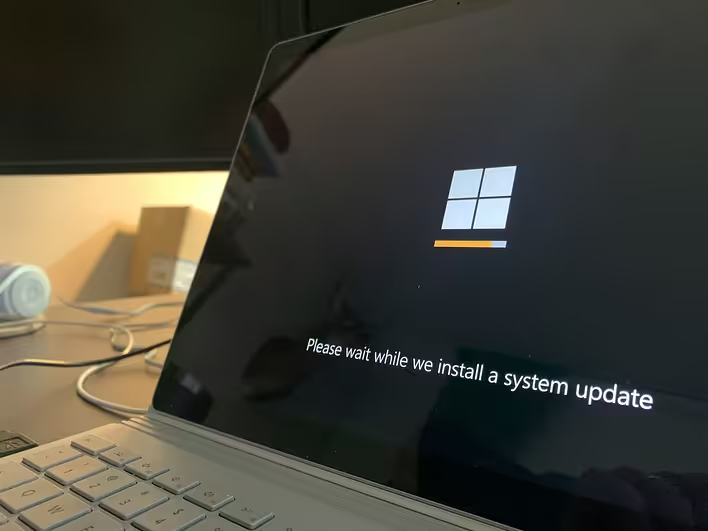
During installation, you can skip entering the key (there's a button "I don't have a product key"). The system will install in unactivated mode, and you will be able to use it for 30 days. During this time, you can set everything up and then activate.
Step 4: Activation on the new hardware
After installation, go to settings (Win + I) → System → Activation → Change product key. Enter your saved key. In most cases, the system activates without problems.
Step 5: If something went wrong
If the system says that the key has already been used or is invalid - don't panic. Go to the activation settings and find the "Troubleshoot" option. There will be an option "I recently changed hardware on this device." Select it, log into your Microsoft account, choose the old device from the list, and confirm that you want to transfer the license to the new one.
In 90% of cases, this resolves the issue. If it didn't help - call Microsoft support (the number is on the activation page). They will ask you to explain the situation and usually accommodate if the license is legal.
What to do with other software: Office, Visio, Project
By the way, a similar situation exists with other Microsoft products. If you had Office 2019 or Office 2021, Visio, or Project - there is also a difference between OEM and Retail. If you want to activate Office on a new computer, you need either your old Retail key or you will have to buy a new one.
Microsoft Office 2019 Pro Plus, for example, is often bought separately as a Retail version so it can be transferred between devices. This is convenient, especially if you work on both a work PC and a home laptop. But remember - only one device can be active at a time on one license (unless it's a Microsoft 365 subscription, where multiple devices can be used).
The process of transferring Office is similar to Windows:
- Uninstall Office from the old computer (optional)
- On the new one, install Office (you can download it from office.com)
- Upon first launch, enter your key or log into the Microsoft account linked to the license
- If it asks to deactivate on the old device - do this through the personal account on the Microsoft website
When it's better to just buy a new key rather than struggle
Honestly, sometimes it's easier not to waste time on transferring and just get a new Windows 11 key or Windows 10 key - depending on what you need. Especially if:
Your old license is OEM and officially not transferable. You can try to dance around it, but there's no guarantee it will work. And even if it does work - legally it's a gray area.
You are unsure about the origin of the old key. You bought it a long time ago, don't remember where, and have no documents. It's better to start with a clean slate with a legal key.
You need a different edition. For example, you previously had Home, but now you need Pro with BitLocker and Remote Desktop for work. Technically, you can buy a key for an upgrade, but sometimes it's easier to just get a clean Pro.
You want to have clear documents in case of audits (if this is a work computer) or just for your own peace of mind.
Buying a Windows 11 license is not as expensive as it seems. Yes, officially at the Microsoft Store it costs several thousand hryvnias, but there are alternative legal suppliers where OEM keys cost 300-600 hryvnias, and Retail - 800-1500. The difference from "gray" keys is negligible, but the peace of mind is significantly greater.
For example, a supplier like kluczi.com.ua helps solve this problem quickly - ordered, received by email, activated. You don't need to waste precious time and nerves trying to "revive" a dubious key or transfer an OEM license against Microsoft's rules.
Most common activation errors and how to resolve them
Here’s a list of errors people most often encounter when trying to activate Windows on new hardware:
Code 0xC004C003 - the system says the key has already been used, is blocked, or is invalid.
What to do:
- Check if you entered the key correctly (without extra spaces, did not confuse 0 and O)
- If it's a Retail key - try the troubleshooter
- If you bought the key recently - contact the seller, it may have already been used or be counterfeit
Code 0x803FA067 - the license does not match your hardware or region.
What to do:
- Most likely, this is an OEM key from another computer
- Or a key for another region (for example, you bought a Turkish key but are trying to activate it in Ukraine)
- Solution: buy a key for your region (Global or Europe)
Code 0xC004F074 - Microsoft activation servers are unavailable or there are internet issues.
What to do:
- Check your internet connection
- Try activation via phone (there is such an option in the settings)
- Wait an hour and try again
Code 0xC004F210 - edition mismatch. You are trying to activate Home with a Pro key or vice versa.
What to do:
- Install the correct edition of Windows that corresponds to your key
- Or buy a key for the edition that is already installed
To avoid most of these problems - buy keys only from verified sellers who provide a guarantee and can confirm the type of license, region, and edition. Before purchasing, you can Google reviews (for example, "kluczi.com.ua reviews"), check if the store has normal contacts, and read the experiences of other buyers.
Additional tips for hassle-free transfer
Keep all documents. When you buy a key - save the email, receipt, screenshot of the personal account. This may be needed if questions arise during activation or in the future during the next transfer.
Use a Microsoft account. If you link your Windows to a Microsoft account - the transfer will be easier. The system will remember that you have a legal license, and when logging in on a new device, you will be able to activate everything quickly.
Don't change hardware too often. If you have a Retail license and change components every month - Microsoft may suspect something is wrong. There is an unofficial limit on the number of activations within a year (the exact number is not disclosed, but it's said to be around 10 times). Better to avoid extremes.
For businesses, consider Volume licenses. If you have several computers - there are special corporate licenses that allow you to activate many machines with one key or through a KMS server. This is more convenient and often cheaper than buying individual Retail keys.
My conclusion from personal experience
Transferring a Windows license is not rocket science, but you need to understand the basics. If you have Retail - it's simple, just transfer it calmly, just follow the instructions. If OEM - don't waste time on experiments, it's better to buy a new Windows 11 activation key from a reliable place.
The main thing is not to save on nameless sellers with suspicious offers. The price difference is not worth it to find out in a month that your system is "illegal" and requires reactivation. Find a decent store with reviews, get a Retail license with documents - and forget about Windows problems for years to come.
After my unsuccessful experience with a forum key, I only buy from verified places. Yes, it may be 100-200 hryvnias more expensive, but this is one of those cases where saving can cost more. One simple day lost due to a non-working activation, and you're already at a loss.
And if you are building a powerful PC for work - think right away about all the software you will need. Windows 11 Pro for business functions, Office for documents, maybe Visio or Project for professional tasks. It's better to get everything legally and with a guarantee once than to dance around activation every year and fear every update.
And finally: if you decide to transfer the old license - do it immediately after building the new PC, before you install a bunch of programs and set everything up. Because if it turns out that the key is not transferable - you will either have to buy a new one and activate the already configured system, or reinstall Windows from scratch. The first option is simpler.