

This content has been automatically translated from Ukrainian.
The same action on a computer can be performed in different ways. A file can be deleted by dragging it to the trash, entering a text command, or selecting an item from a menu drawn with symbols inside the terminal. The result will be approximately the same, but the way of interacting with the system is fundamentally different.
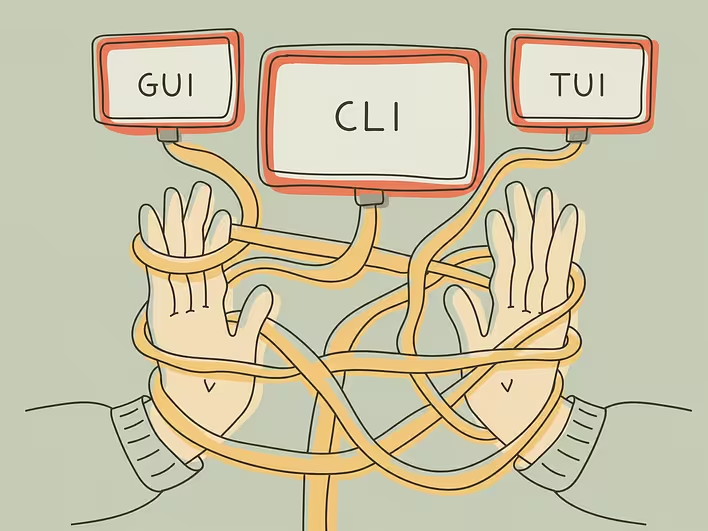
These three approaches are called GUI, CLI, and TUI. The first is built around graphical elements, the second around commands, and the third combines a text environment with a structure similar to a regular program. The boundary between them is not always obvious, especially between CLI and TUI, as both can operate in the same terminal window.
What is a user interface
A user interface is the way a person interacts with a program, operating system, or device. It accepts user actions, sends appropriate commands to the system, and displays the result.
Buttons, menus, text fields, command lines, touch gestures, and even voice commands are all different elements of the interface. They are not the internal function of the program itself. For example, copying a file can be initiated through a button, a keyboard shortcut, or a text command, although the system performs a similar operation in each case.
Therefore, GUI, CLI, and TUI should be viewed not as three varieties of computers, but as three ways to manage programs and data.
What is GUI
GUI stands for graphical user interface. In it, information and available actions are presented through windows, buttons, icons, menus, lists, tabs, and images.
GUI includes familiar interfaces of Windows, macOS, Android, and iOS, browsers, graphic editors, office programs, and most mobile applications. The user interacts with them using a mouse, trackpad, keyboard, or touchscreen.
For example, to create a folder, a person opens the context menu, selects the desired command, and enters a name. They do not need to know what this action is called in the internal language of the operating system.
The main advantage of GUI is its visual clarity. The user sees the available tools, the state of the program, and the results of their actions. Operating systems can provide both graphical and command methods of interaction, but GUI has become the primary method for the everyday work of most people.
At the same time, graphical interface is not always the fastest. If you need to process thousands of files in the same way, repeat a long sequence of operations, or remotely manage a server, clicking buttons for each action can be inconvenient.
The emergence of windows, icons, and the desktop metaphor is discussed in more detail in a separate article “What is a graphical interface: how windows, folders, and icons appeared”.
What is CLI
CLI stands for command-line interface. Instead of searching for a function in a menu, the user enters a text command, which the system then analyzes and executes.
A command usually contains the name of the program or operation, as well as additional parameters. These specify which file to work with, where to save the result, or under what rules to perform the action.
For example, a conditional command might mean:
- find all files of a certain type;
- copy them to another folder;
- rename them according to a specified pattern;
- show only those that were modified within the last day.
In GUI, this sometimes requires opening several windows and repeating the same movements. In CLI, the entire sequence can be described in one line or written into a script for repeated execution.
The command shell accepts the entered text, recognizes the command, and passes it to the operating system or the appropriate program. Many shells also support variables, conditions, loops, functions, and running commands from scripts. Therefore, CLI is not only a method of manual control but also a tool for automation.
Famous command shells include Bash, PowerShell, and Command Prompt. However, shell, terminal, and CLI are not complete synonyms, although they are often referred to by the same term in everyday speech.
Terminal, console, and shell — what’s the difference
A terminal is an environment where text is displayed and user input is accepted. Once, terminals were separate physical devices with a screen and keyboard, but today they mostly exist as programs: Windows Terminal, Terminal in macOS, or various terminal emulators in Linux.
A command shell, or shell, operates inside the terminal. It reads the entered commands, interprets them, and executes the necessary operations. One terminal can support multiple shells: for example, PowerShell, Command Prompt, or Bash.
CLI is the very principle of interaction through command input. The terminal displays a text environment, while the shell provides a dialogue between the user and the system.
In simplified terms, this can be imagined as follows: the terminal is a room for conversation, the shell is the interlocutor who understands a certain language, and CLI is the way of communicating using text commands.
What is TUI
TUI is most often interpreted as text-based user interface or terminal user interface.
It operates in a text environment, but unlike a regular command line, it uses the entire available screen. It can have panels, frames, tables, menus, lists, tabs, buttons, and individual fields. Instead of full-fledged computer graphics, such elements are primarily formed from text characters and colored cells of the terminal.
The user does not need to remember the exact command. They navigate between elements using arrow keys, the Tab key, or specified combinations, select menu items, and change parameters in visible fields.
IBM describes the text interface as an environment that uses the entire window of the screen, unlike CLI, which focuses on command line input. Libraries like ncurses provide programs with tools to create windows, menus, input fields, and other structured elements in the terminal.
Typical examples of TUI include file managers with two panels, terminal text editors, programs for viewing system processes, and server configuration wizards. They may resemble graphical applications, although they operate entirely in the terminal.
Why TUI is confused with CLI
CLI and TUI often open in the same terminal window and are mainly controlled by the keyboard. Because of this, any program with text on a dark background may be referred to as a command line.
However, the way of interaction in them is different.
In CLI, the user primarily formulates the action themselves: enters the command name, parameters, and file path. After execution, the system outputs a text result and shows the prompt for the next command again.
In TUI, the program already creates a ready-made structure. The user sees menus, tables, buttons, or panels and selects an action from the options provided. They may not need to enter commands manually at all.
For example, in CLI, to copy a document, you need to write the appropriate command and correctly specify the source and destination paths. In a TUI file manager, it is enough to select the file in the panel, press the required key, and confirm the destination folder.
Thus, CLI is a conversation with the system using commands, while TUI is managing a text program through visible elements.
Comparison of GUI, CLI, and TUI
Advantages and limitations of GUI
GUI is convenient to use where it is important to see the content itself: editing photos, editing videos, working with layouts, browsing websites, or organizing documents.
It shows available actions and allows exploring the program without prior knowledge of all its functions. The user can open a menu, hover the cursor over a button, read a tooltip, and gradually understand how it works.
However, a complex graphical program requires more screen space and system resources. Additionally, GUI is poorly suited for repeatedly performing the same operation unless developers have provided a separate automation tool.
Advantages and limitations of CLI
CLI allows you to precisely describe the required action and save it for reuse. Commands can be combined, results from one program can be passed to another, and they can be run automatically on a schedule.
This is especially useful for system administration, software development, working with servers, and bulk file processing. The command interface also works well over a slow remote connection since it does not require the transfer of complex graphics.
The main drawback of CLI is the need to know the syntax. The user must remember command names, the order of parameters, and rules for working with paths. An incorrectly formed command can result in an error, and in some cases, execute an unwanted action.
CLI is not necessarily more complex than GUI in all situations. Simply opening a photo is more conveniently done with a double-click, but renaming ten thousand photos according to one rule is often easier with a command or script.
Advantages and limitations of TUI
TUI occupies an intermediate position between GUI and CLI. It offers a ready-made structure, so the user does not need to remember every command, but it remains lightweight and suitable for working in the terminal.
This interface is convenient on servers, in remote sessions, and on devices where a full graphical environment is not available. It is also liked by users who prefer to work mainly from the keyboard.
At the same time, TUI is limited by the capabilities of the text grid. It is more challenging to display photos, arbitrary graphics, animations, and non-standard elements. Control keys in different programs may also vary, so a new TUI often requires a short adjustment period.
One program can have multiple interfaces
GUI, CLI, and TUI do not necessarily correspond to different programs. One tool can offer several ways to manage the same functionality.
For example, a file management application may have a graphical window for ordinary users and CLI for automated scripts. A server configuration system may offer commands for experienced administrators and a TUI wizard with a menu for those who want to see available options.
In this case, it is not the operation itself that changes, but the way it is initiated. A graphical button, a text menu item, and a command can all refer to the same internal mechanism.
That is why CLI should not be considered an outdated version of GUI, and TUI should not be seen as an underdrawn graphical interface. Each is designed for its working conditions.
Which interface is better
There is no universally better option. The choice depends on the task, user experience, available hardware, and the need to repeat operations.
GUI is most convenient when visibility, free exploration of possibilities, and working with visual content are required. CLI is strong in precision, quick command repetition, and automation. TUI is useful where a clear structure is needed, but a graphical environment is unavailable or unnecessary.
A modern user often switches between all three formats without even thinking about their names. They configure the program through GUI, launch automated processing with a command, and check the system status in a terminal table. The difference between GUI, CLI, and TUI is not in how "modern" they look, but in what language a person communicates with the computer.